레이블이 #WPF트리거인 게시물을 표시합니다. 모든 게시물 표시

2019년 1월 27일 일요일

WPF 트리거(Trigger), 이벤트 트리거(EventTrigger), ColorAnimation, DoubleAnimation, DoubleAnimationUsingKeyFra

WPF 트리거(Trigger), 이벤트 트리거(EventTrigger), ColorAnimation, DoubleAnimation, DoubleAnimationUsingKeyFra
​
n 발생하는 이벤트에 대한 액션을 정의한다.
n Trigger 또는 MultiTrigger는 특정 속성값이 변했을 때, DataTrigger, MultiDataTrigger는 바인딩 되는 값이 변경 되었을 때 발생하는 트리거이지만 EventTrigger는 특정 이벤트가 일어 났을때 트리거가 실행되며 FrameworkElement의 RoutedEvent가 발생했을 때 실행되는 트리거 이다.
n EventTrigger는 특정 이벤트가 발생했을 때 컨트롤이나 엘리먼트의 변경을 유도하는데 주로 그래픽 애니메이션등에서 사용되며FrameworkElement도 Triggers라는 프로퍼티를 정의하며 이 컬렉션에 들어갈 수 있는 유일한 Trigger가 EventTrigger이다.
n WPF의 라우팅 이벤트는 자식의 이벤트가 부모에게 전달되거나 부모가 먼저 이벤트를 가로챈 후 자식으로 전달 또는 해당 요소에서만 이벤트가 발생하도록 할 수 있는데 이벤트 트리거는 지정한 라우팅 이벤트가 발생할 때 할 일을 정의한다.
n 마우스 포인터가 특정 컨트롤 위에 있을 때의 애니메이션을 정의할 때 주로 이벤트 트리거를 사용하는데 이벤트 트리거는 상태의 종료에 대한 개념이 없으므로 이벤트를 발생시킨 조건이 종료하더라고 작업의 실행이 취소되지는 않으므로 이벤트 트리거를 사용할 때 컨트롤의 고유한 동작을 방해하지 않는 이벤트를 선택해야 한다.
n 예를들어 Button에 스타일을 정의하고 MouseDown 이벤트를 이벤트 트리거의 RoutedEvent로 설정 하더라도 해당 이벤트가 Button에서 먼저 처리 되므로 이벤트 트리거는 작동하지 않는다. 그러므로 대신 PreviewMouseDown등에서 사용해야 한다.
n 데이터 바인딩을 사용할 때 TargetUpdated 이벤트를 사용하는 경우 발생할 이벤트에 대해 바인딩 개체의 NotifyTargetUpdated 값을 true로 설정해야 한다.
n 이벤트 트리거는 스타일의 Triggers 속성 내에 하나 이상의 EventTrigger 요소를 추가하는데 트리거를 발생시키는 라우팅 이벤트 이름을 지정하는 RoutedEvent 속성 값을 설정해야 한다.
n ColorAnimation : UIElement의 컬러 프로퍼티(SolidColorBrush, LinearGradientBrush) 변화에 사용되는 애니메이션으로 Duration으로 시:분:초를 정의하고 From(source), To(target) 등의 속성등을 지정할 수 있다.
n StoryBoard는 UIElement의 속성에 애니메이션을 제공하기 의해 사용되고 TargetName과 TargetProperty 속성을 제공한다. TargetName은 애니메이션이 제공되는 컨트롤이며 TargetProperty는 컨트롤의 속성이다.
n [MainWindow.xaml]
<Border Name="border1" Width="100" Height="30"
BorderBrush="Black" BorderThickness="1">
<Border.Background>
<SolidColorBrush x:Name="MyBorder" Color="LightBlue" />
</Border.Background>
<Border.Triggers>
<EventTrigger RoutedEvent="Mouse.MouseEnter">
<BeginStoryboard>
<Storyboard>
<ColorAnimation Duration="0:0:1"
Storyboard.TargetName="MyBorder"
Storyboard.TargetProperty="Color"
To="Gray" />
</Storyboard>
</BeginStoryboard>
</EventTrigger>
</Border.Triggers>
</Border>
n DoubleAnimation : UIElement의 width/height 값을 변경하기 위해 사용.
n 아래 예문은 Border의 width는 5초동안 100에서 20까지 애니메이션 된다. 그리고 AutoReverse 속성 때문에 즉시 20에서 100으로 돌아오게 된다. AutoReverse 속성은 From à To à From의 형태를 지원하는 속성이다.
<Border Name="EventTriggerBorder"
Width="100"
Height="30"
Background="Olive"
BorderBrush="Black"
BorderThickness="1">
<Border.Triggers>
<EventTrigger RoutedEvent="Mouse.MouseEnter">
<BeginStoryboard>
<Storyboard>
<DoubleAnimation AutoReverse="True"
Duration="0:0:2"
From="1"
Storyboard.TargetName="EventTriggerBorder"
Storyboard.TargetProperty="(Border.Opacity)"
To="0.5" />
<DoubleAnimation AutoReverse="True"
Duration="0:0:5"
From="100"
Storyboard.TargetName="EventTriggerBorder"
Storyboard.TargetProperty="(Border.Width)"
To="20" />
</Storyboard>
</BeginStoryboard>
</EventTrigger>
</Border.Triggers>
</Border>
n DoubleAnimationUsingKeyFrames : UIElement의 width/height 값을 변경하기 위해 사용하는 DoubleAnumation과 유사하며 추가적으로 KeyFrames 속성이 추가되었으며 두 개 이상의 대상 값을 사용하여 애니메이션을 만들 수 있다.
<Storyboard x:Key="LoadStoryBoard"
AutoReverse="True"
RepeatBehavior="Forever">
<DoubleAnimationUsingKeyFrames Storyboard.TargetName="LoadedBorder"
Storyboard.TargetProperty="(UIElement.Opacity)">
<!— KeyTime은 Value에 도달하는 시간을 정의 à
<EasingDoubleKeyFrame KeyTime="0:0:0.7" Value="0.4" />
</DoubleAnimationUsingKeyFrames>
</Storyboard>
위 예문에서 Border의 투명도는 1에서 0.4까지 0.7초 동안 변경되며 RepeatBehavor 속성은 프로퍼티의 값을 기준으로 애니메이션을 반복할 때 사용하며 StoryBoard를 시작하기 위해서는 컨트롤의 EventTrigger 안에서 BeginStoryBoard 액션을 호출해야 한다.
<Border.Triggers>
<EventTrigger RoutedEvent="FrameworkElement.Loaded">
<BeginStoryboard Storyboard="{StaticResource LoadStoryBoard}" />
</EventTrigger>
</Border.Triggers>
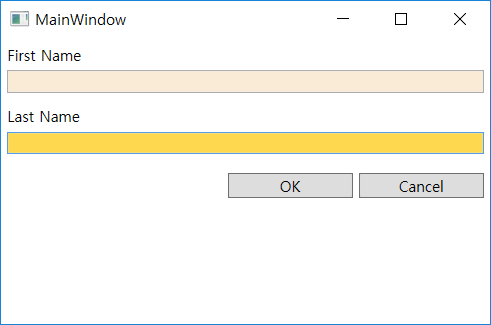
n 아래 예문은 텍스트 박스가 포커스를 얻거나 잃을 때 텍스트 박스의 배경색을 간단한 애니메이션으로 구현한 예문이다.
<Window x:Class="WpfApp6.MainWindow"
xmlns="http://schemas.microsoft.com/winfx/2006/xaml/presentation"
xmlns:x="http://schemas.microsoft.com/winfx/2006/xaml"
xmlns:d="http://schemas.microsoft.com/expression/blend/2008"
xmlns:mc="http://schemas.openxmlformats.org/markup-compatibility/2006"
xmlns:local="clr-namespace:WpfApp6"
mc:Ignorable="d"
Title="MainWindow" Height="350" Width="525">
<Window.Resources>
<Style x:Key="NameBox" TargetType="TextBox">
<Setter Property="Background" Value="AntiqueWhite"/>
<Setter Property="Margin" Value="5 0 5 5"/>
<Style.Triggers>
<EventTrigger RoutedEvent="GotFocus">
<BeginStoryboard>
<Storyboard>
<ColorAnimation Storyboard.TargetProperty="Background.Color"
To="Gold" Duration="0:0:1" AutoReverse="True"/>
</Storyboard>
</BeginStoryboard>
</EventTrigger>
<EventTrigger RoutedEvent="LostFocus">
<BeginStoryboard>
<Storyboard>
<ColorAnimation Storyboard.TargetProperty="Background.Color"
To="AntiqueWhite" Duration="0:0:1" AutoReverse="True"/>
</Storyboard>
</BeginStoryboard>
</EventTrigger>
</Style.Triggers>
</Style>
<Style x:Key="ButtonStyle" TargetType="Button">
<Setter Property="HorizontalAlignment" Value="Right"/>
<Setter Property="Margin" Value="0 10 5 0"/>
<Setter Property="Width" Value="100"/>
</Style>
</Window.Resources>
<StackPanel>
<Label Content="First Name" />
<TextBox Style="{StaticResource NameBox}"/>
<Label Content="Last Name" />
<TextBox Style="{StaticResource NameBox}"/>
<StackPanel Orientation="Horizontal" HorizontalAlignment="Right">
<Button Style="{StaticResource ButtonStyle}">OK</Button>
<Button Style="{StaticResource ButtonStyle}">Cancel</Button>
</StackPanel>
</StackPanel>
</Window>

(C#교육동영상)C# ADO.NET 실습 ODP.NET/ODAC 설치 오라클 함수 호출 실습, C#학원, WPF학원, 닷넷학원, 자바학원

  (C#교육동영상)C# ADO.NET 실습  ODP.NET/ODAC 설치  오라클 함수 호출 실습, C#학원, WPF학원, 닷넷학원, 자바학원 https://www.youtube.com/watch?v=qIPU85yAlzc&list=PLxU-i...